How to Save Cellular Data on iPhone: 10 Settings That Actually Cut Usage

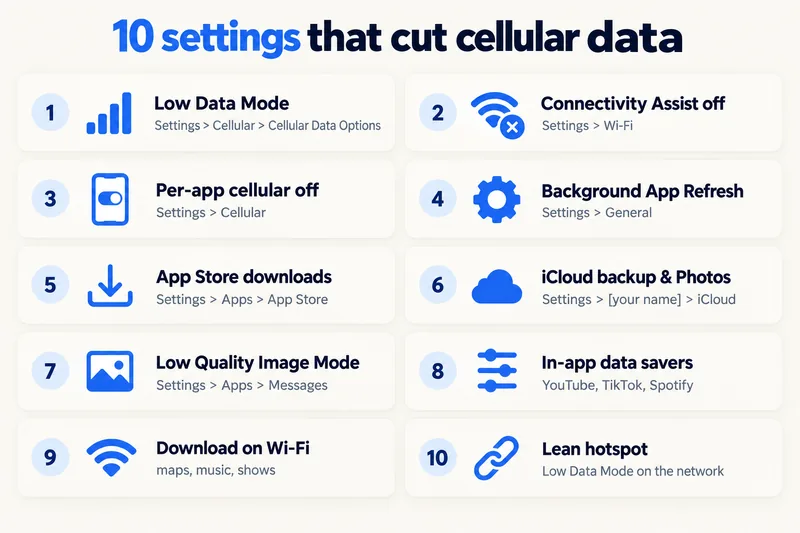
The five settings that cut the most cellular data on an iPhone are Low Data Mode (Settings, Cellular, Cellular Data Options), turning off Connectivity Assist (Settings, Wi-Fi; called Wi-Fi Assist under Cellular on iOS 26 and earlier), switching off cellular data for heavy apps you don't need on the go, stopping iCloud Photos and backups over cellular, and turning off App Store automatic downloads, updates and video autoplay on cellular. Then lower the quality in video apps, which is where most data goes.
Start by finding your heaviest apps (our guide on checking data usage on iPhone shows where), and if you want to know what your trip actually needs, our travel data calculator turns your apps into a daily budget. Below are the settings with their exact paths, what each one changes and which apps to tweak.
1. Turn on Low Data Mode
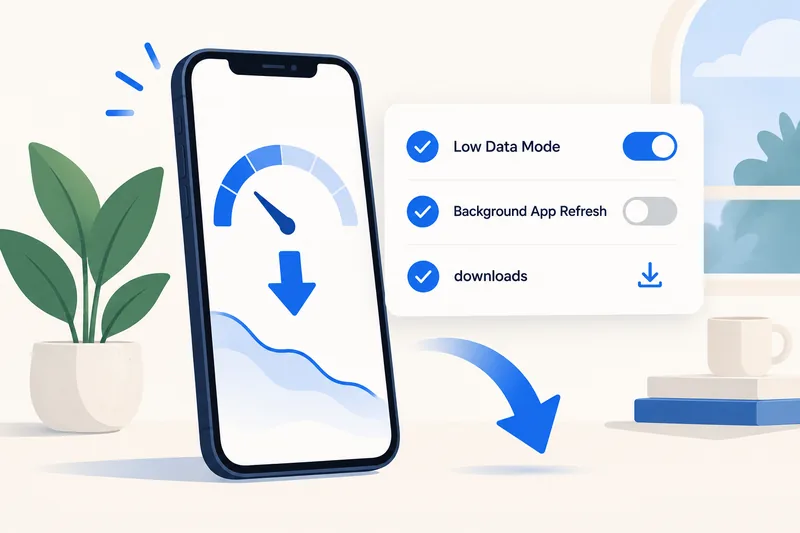
Apple describes Low Data Mode as a way to "restrict background network use and save network usage".
- 4G/LTE: Settings, Cellular, Cellular Data Options, Low Data Mode.
- 5G: Settings, Cellular, Cellular Data Options, Data Mode, Low Data Mode.
- Dual SIM: Settings, Cellular, tap the number, Low Data Mode. Turn it on for your travel eSIM line.
- Wi-Fi or a hotspot network: Settings, Wi-Fi, tap the info button next to the network, Low Data Mode.
According to Apple, it stops apps using the network when you aren't actively using them, turns off Background App Refresh, reduces streaming quality, turns off automatic downloads and backups, and pauses services such as iCloud Photos. In Apple's own apps it turns off App Store video autoplay and automatic updates, Music's automatic downloads and high-quality streaming, and News article prefetching, and FaceTime "optimizes video bitrate for lower bandwidth". On 5G, avoid Allow More Data on 5G if your plan is small; that mode lets apps use higher-quality video.
2. Turn off Connectivity Assist (Wi-Fi Assist)
When Wi-Fi is slow, this feature quietly uses cellular data to keep things loading. Apple's wording: "With Connectivity Assist turned on, you might use more cellular data." On iOS 27 it lives in Settings, Wi-Fi, Connectivity Assist and can be turned off overall or per network. On iOS 26 and earlier it is Wi-Fi Assist at the bottom of Settings, Cellular. Apple notes it is not used while you are roaming internationally or in Low Data Mode, but on a home plan it is worth switching off.
Need data for your trip? Compare eSIM plans by validity and data volume.
View eSIM plans3. Switch off cellular data for heavy apps
In Settings, Cellular, scroll to the app list (tap Show All) and turn off any app you only need on Wi-Fi, such as a streaming service you watch at the hotel. Apple notes that an app with cellular data off "will use only Wi-Fi for data". System Services can't be switched off one by one.
4. Limit background activity
Go to Settings, General, Background App Refresh and set it to Wi-Fi only, or turn it off for apps that don't need to refresh. Low Data Mode already turns it off, so this matters most when you keep Low Data Mode off at home.
5. Stop App Store downloads and autoplay on cellular
In Settings, Apps, App Store:
- Under Automatic Downloads, turn off App Downloads, App Updates and In-App Content on cellular, or let them run on Wi-Fi only.
- Under Cellular Data, choose to be asked before large downloads.
- Turn off Video Autoplay for app preview videos.
Also make sure iOS updates download on Wi-Fi: a single system update can be several GB.
6. Keep iCloud off cellular
- iCloud Backup: on 5G models some carriers allow backups over cellular. Check Settings, [your name], iCloud, iCloud Backup, and turn off Back Up Over Cellular.
- iCloud Photos: in the Photos settings, turn off cellular data for Photos or keep it limited. On iOS 27, avoid the Sync Immediately option (Settings, [your name], iCloud, Photos) on cellular; Apple warns it "could lead to higher data usage".
- iCloud Drive: in the Cellular app list, turn off iCloud Drive if you don't need files synced on the go.
iCloud uploads are a common reason for unexplained data use after a day of taking photos or receiving them by AirDrop.
7. Make messaging and calls lighter
In Settings, Apps, Messages, turn on Low Quality Image Mode so photos you send are compressed; see how much data iMessage uses. For calls home, an audio call uses a fraction of a video call; our guide to FaceTime data use has the numbers.
8. Use the data savers inside your apps
| App | Setting | Typical effect |
|---|---|---|
| YouTube | Video quality preferences, On mobile networks, Data saver | ~3 GB/h in HD down to ~300 MB/h (details) |
| TikTok | Settings and privacy, Data Saver | ~840 down to ~360 MB/h (details) |
| Data usage and media quality, Use less mobile data | Stops videos preloading (details) | |
| Spotify | Media quality for cellular; Data saver; downloads on Wi-Fi | Very high ~144 MB/h vs Normal ~43 MB/h (details) |
| Netflix | Cellular data usage, Save Data | About 6 hours per GB |
| Google Maps | Download offline maps on Wi-Fi | Navigation at close to zero (details) |
9. Download before you go
Offline maps, playlists, podcasts and a few episodes downloaded on home or hotel Wi-Fi cost nothing from your plan later. For video and music, this habit can save more than any single switch above.
10. Keep your hotspot lean
A laptop on your Personal Hotspot behaves like it is on home broadband: system updates, cloud sync and video meetings. On another Apple device, turn on Low Data Mode for your hotspot network; on a Windows laptop, mark the connection as metered and pause cloud sync. More in our guide to hotspot with an eSIM.
Saving data on a trip with a travel eSIM
Abroad, apply Low Data Mode to the travel eSIM line, keep Data Roaming on for the eSIM and off for your home SIM (our guide to turning off data roaming shows both), and check usage after the first day. The biggest lever is still video: moving an hour of HD a day to standard quality or Wi-Fi saves about 2 GB a day. In our calculator, a heavy traveller uses about 4.3 GB a day and a moderate one about 1.3 GB, which is about 30 GB against 9–10 GB over a week; most of that gap is video.
In Thailand, for example, that is the difference between the Thailand 10GB, 30-day plan at $8.99 and the Thailand 50GB, 10-day plan at $13.99 (Zyesims prices on 1 October 2026). You can run the calculator with Thailand and 7 days, browse Thailand eSIM plans, or skip the counting with our unlimited eSIM plans.
Why Zyesims for a data-conscious trip
If the settings above still leave you short, most fixed plans can be topped up on the same eSIM, with top-ups starting under a dollar, so you don't have to buy the biggest plan up front.
Frequently Asked Questions
Does Low Data Mode really save data on iPhone?
Yes, mostly by stopping background activity. Apple says it stops apps using the network when you are not actively using them, turns off Background App Refresh and automatic downloads and backups, pauses iCloud Photos updates and lowers streaming quality. It does not cap how much you use in apps you open yourself.
Does Low Data Mode affect iMessage, notifications or calls?
Messages, notifications and calls keep working. Some content may load a little later, iCloud syncing pauses, and FaceTime video is optimised for lower bandwidth, which can look softer on a weak connection.
Why is my iPhone using so much data?
Usually video and social apps, followed by iCloud Photos uploads, app updates over cellular and Connectivity Assist (Wi-Fi Assist on older iOS) topping up a weak Wi-Fi connection. Check the per-app list in Settings, Cellular to see which applies to you.
Should I turn off 5G to save data?
Switching to LTE is mainly a battery setting. The setting that matters for data is Data Mode: choose Low Data Mode or Standard rather than Allow More Data on 5G, which lets apps use higher-quality video and FaceTime.
How much data can these settings save on a trip?
It depends on your habits, but the biggest savings come from video. Moving one hour a day of HD video to standard quality or Wi-Fi saves around 2 GB a day, or roughly 14 GB over a week.
Keep reading
- Can You Hotspot with an eSIM? Limits, Data Use and Fixes for Travelers
- What Is Data Roaming? 2026 Costs and Cheaper Alternatives
- Fair Usage Policy on Unlimited eSIMs: Daily Caps & Throttling
- What Do Internet Speeds Really Mean? Mbps, 4G & 5G for Travelers
- How Does Dual SIM Work? Pairing a Home SIM with a Travel eSIM

A travel and tech enthusiast who loves to wander and discover new places. Mihi writes Zyesims' guides to eSIMs and mobile data abroad, built from carriers' and app makers' own documentation, published plan terms and Zyesims' current plan data — with sources named in each article. Mihi also writes about travel at MihiTravel and Notemeeting.
Ready for your next trip?
Choose the right eSIM, get your QR code by email, and connect when you land — coverage in 200+ countries.