How to Turn Off Data Roaming on iPhone and Android (and Set Up a Travel eSIM)

On iPhone, go to Settings, Cellular, Cellular Data Options and turn off Data Roaming (on a dual SIM phone, tap the line first). On Android, go to Settings, Network & internet, SIMs and turn off Roaming on a Pixel, or Settings, Connections, Mobile networks, Data roaming on a Samsung. If you use a travel eSIM, turn roaming off for your home SIM but on for the travel eSIM, or the eSIM will not connect.
Data roaming means using mobile data on a network abroad; our guide to what data roaming is covers how it works and what it costs. Below are the exact steps for each phone, the right setup with a travel eSIM, what the switch does not stop, and fixes when something does not work. With roaming off on your home line, a travel eSIM carries your data; to size it, estimate how much data you need for the trip.
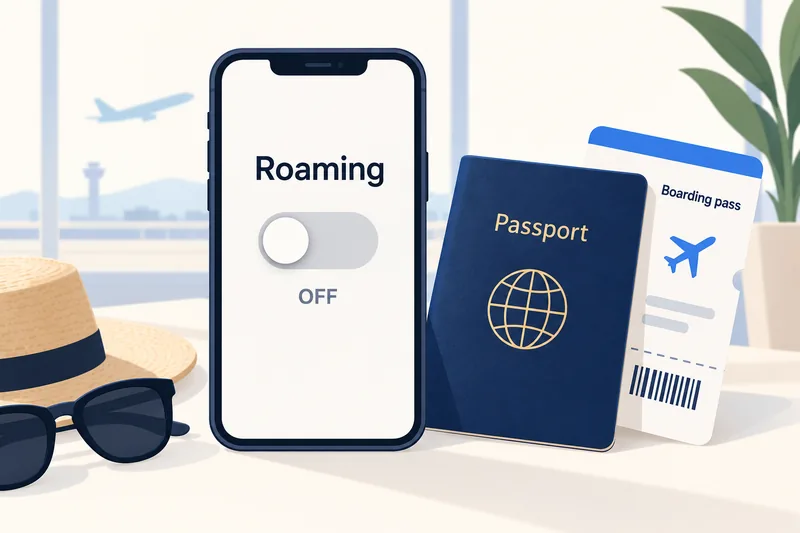
How to turn off data roaming on iPhone
Single SIM
- Open Settings and tap Cellular (called Mobile Data in the UK, Australia and some other regions).
- Tap Cellular Data Options.
- Turn off Data Roaming.
Dual SIM (home SIM plus travel eSIM)
Roaming is set per line. Apple's instructions: in Settings, Cellular, tap the number you want to change, then Cellular Data Options, then Data Roaming.
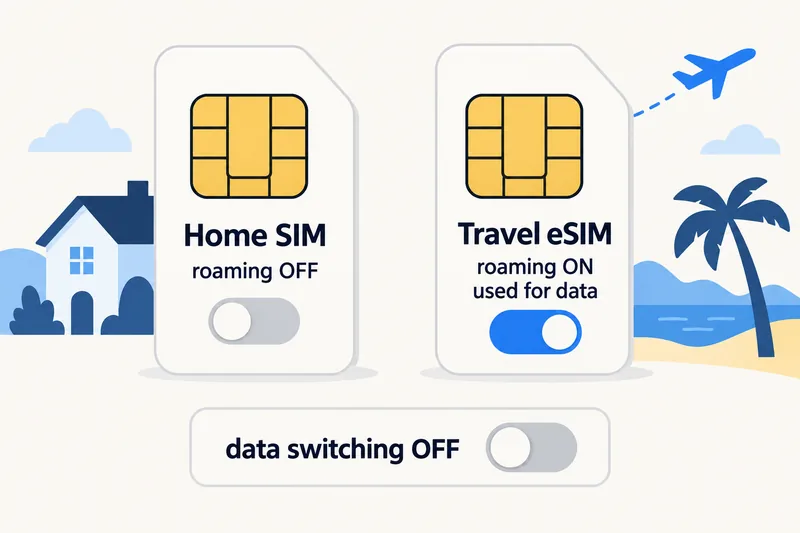
- Home line: Data Roaming off.
- Travel eSIM line: Data Roaming on.
- Under Settings, Cellular, Cellular Data, choose the travel eSIM and switch off Allow Cellular Data Switching so the phone never borrows data from your home line.
Recent iOS versions also offer a travel eSIM setup that asks whether to use the travel eSIM only or together with your current line, and Apple says that with iOS 26 and later the iPhone can switch back to your home SIM automatically when you return, depending on your country or region.
How to turn off data roaming on Android
Google Pixel
- Open Settings, then Network & internet.
- Tap SIMs and pick the SIM if you have more than one.
- Turn off Roaming (on a Pixel the switch is just called Roaming).
On Pixel 8a and newer, also check Automatic data switching and turn it off while abroad.
Samsung Galaxy
- Open Settings, then Connections.
- Tap Mobile networks.
- Turn off Data roaming.
Samsung notes that if the switch is greyed out, mobile data itself is off: turn it on under Settings, Connections, Data usage, Mobile data. To choose which SIM is used for data, open SIM manager in the same Connections menu.
Other Android phones
Look under Settings, Network & internet (or Mobile network), open the SIM or carrier entry and find Roaming or Data roaming. Labels vary by brand, but the switch is always per SIM.
Need data for your trip? Compare eSIM plans by validity and data volume.
View eSIM plansThe right setup with a travel eSIM
| Setting | Home SIM | Travel eSIM |
|---|---|---|
| Data Roaming | Off | On |
| Used for mobile data | No | Yes |
| Calls and SMS | Your choice (see below) | Data only on most travel plans |
| Data switching (iPhone Allow Cellular Data Switching, Pixel Automatic data switching) | Off | |
Why the eSIM needs roaming on: most travel eSIMs, including ours, connect through partner networks in the country you visit, so your phone sees them as roaming. With roaming off on that line the eSIM shows signal but no internet. Apple puts it simply: roaming with an eSIM "works the same as roaming with a physical SIM".
Apple's travel eSIM guide adds that with a travel eSIM, iMessage and FaceTime keep working on your home number, and warns that if you keep both lines on you "might still incur roaming fees" from the home line. Our guide to how dual SIM works explains the full two-line setup.
What turning off data roaming does not stop
The Data Roaming switch controls mobile data only. It does not block:
- Calls on your home number, incoming or outgoing, which many carriers bill at roaming rates.
- SMS you send from your home number (receiving is often free or cheap, depending on your carrier).
- Voicemail diverts, which some carriers charge as a roamed call.
Also expect some features on the home line to pause: Apple notes that on a dual SIM iPhone, when data roaming is on for the data line, Visual Voicemail and MMS are disabled on the voice-only line. To stop all charges on the home line, turn the line off (iPhone: Settings, Cellular, tap the line, switch off Turn On This Line; Android: disable the SIM in SIMs or SIM manager). That is better than Airplane Mode because your travel eSIM keeps working. If you need your number for bank codes, leave the line on and accept that SMS and calls are billed by your carrier.
Troubleshooting
The eSIM shows signal but there is no internet
Turn Data Roaming on for the eSIM line, confirm the eSIM is selected for mobile data, then toggle Airplane Mode off and on. If it still fails, our eSIM not working guide walks through the other fixes.
The Data Roaming switch is greyed out
Mobile data is off for that line. Turn mobile data on first, then change roaming.
Roaming turned itself back on
Settings can change after an iOS or Android update, a carrier settings update or when you add a new eSIM. Check both lines again after you land, and again before you fly home.
Data is still disappearing
Check the per-app list under Settings, Cellular (iPhone) or Data usage (Android). Large uploads and updates are usually the cause, not roaming. Our guide to checking data usage on iPhone and saving data on iPhone cover this.
Before you fly: a 5-step checklist
- Install the travel eSIM at home on Wi-Fi and check the compatible devices list first.
- Home SIM: Data Roaming off (or turn the line off if you don't need your number).
- Travel eSIM: Data Roaming on, set as the mobile data line.
- Data switching off.
- Know how much data you need: our data calculator suggests a plan size for your trip; a typical traveller uses about 1.3 GB a day.
For a week in Japan, for example, a moderate user needs about 9 GB, which the Japan 10GB, 30-day plan covers for $8.99 (Zyesims price on 1 October 2026). If you would rather not count at all, compare our unlimited eSIM plans or browse Japan eSIM plans.
Why Zyesims instead of roaming
With roaming off on your home line, your data abroad runs on the travel eSIM at a price you see before paying, such as the Japan 10GB plan above for a typical week. Most fixed plans can be topped up on the same eSIM if the trip runs longer.
Frequently Asked Questions
Does turning off data roaming stop all roaming charges?
No. The Data Roaming switch only blocks mobile data on that line. Calls and text messages on your home number can still connect abroad and may be billed at roaming rates. To stop all charges on the home line, turn that line off in your SIM settings or use Airplane Mode with Wi-Fi.
Do I need data roaming on for a travel eSIM?
Usually yes. Most travel eSIMs, including Zyesims plans, connect through partner networks in the country you visit, so the phone treats them as roaming. Turn Data Roaming on for the travel eSIM line only, and keep it off for your home SIM.
Can I still receive calls and texts with data roaming off?
Yes, if your home line is switched on. Data roaming off does not block calls or SMS, but your carrier may charge for them while you are abroad. iMessage, WhatsApp and FaceTime keep working over Wi-Fi or a travel eSIM's data.
Why does my eSIM say connected but there is no internet?
The most common cause is Data Roaming being off on the travel eSIM line. Turn it on for that line, make sure the eSIM is selected as your mobile data line, then toggle Airplane Mode off and on.
How do I know if my phone is roaming?
Abroad, the status bar shows the partner network's name instead of your home carrier, and many Android phones show a small R next to the signal bars. You can also check which line is active for mobile data in your SIM settings.
Keep reading
- What Is Data Roaming? 2026 Costs and Cheaper Alternatives
- How Does Dual SIM Work? Pairing a Home SIM with a Travel eSIM
- eSIM Not Working? How to Fix No Service on iPhone and Android
- How Long Does It Take to Activate an eSIM? Real Timelines
- What Is an eSIM? A Complete Beginner's Guide for Travelers (2026)

A travel and tech enthusiast who loves to wander and discover new places. Mihi writes Zyesims' guides to eSIMs and mobile data abroad, built from carriers' and app makers' own documentation, published plan terms and Zyesims' current plan data — with sources named in each article. Mihi also writes about travel at MihiTravel and Notemeeting.
Ready for your next trip?
Choose the right eSIM, get your QR code by email, and connect when you land — coverage in 200+ countries.