eSIM Not Working? How to Fix No Service on iPhone and Android

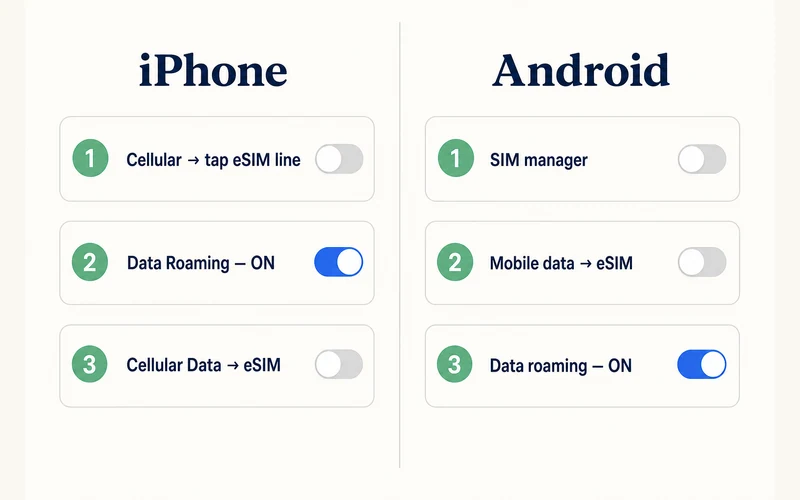
If your eSIM shows No Service, three settings fix the large majority of cases. Turn data roaming on for the eSIM line, set the eSIM as your mobile data line, and toggle airplane mode off and on for 15 seconds. Work down this page in order and do not delete the profile, because most travel eSIM QR codes only work once.
This guide separates the two problems people mix up: an eSIM that will not install at all, and an eSIM that installed fine but cannot find a network. They have different causes and different fixes.

Start Here: The Three Fixes That Solve Most Cases
Do these in order before anything else. They take about a minute in total and they resolve most reports we see.
- Turn data roaming on for the eSIM line. On iPhone: Settings > Cellular (Mobile Data) > tap the eSIM line > Data Roaming on. On Android: Settings > Network & internet > SIMs (Samsung: Connections > SIM manager) > pick the eSIM > Data roaming on.
- Make the eSIM your data line. Having the line installed is not enough if your phone is still routing data through your home SIM. On iPhone: Settings > Cellular > Cellular Data > choose the eSIM. On Android: SIM manager > Mobile data > choose the eSIM.
- Toggle airplane mode. On for 15 seconds, then off. This forces the phone to search for networks again instead of sitting on a failed registration.
Check the status bar after each step rather than at the end. If a carrier name appears, you are connected and can stop.
Find your symptom in this table
If you would rather jump straight to the relevant section, match what your phone is doing against the left column.
| What you see | Most likely cause | Try first |
|---|---|---|
| No Service, just landed | Data roaming off on the eSIM line | Turn roaming on for that line, then toggle airplane mode |
| No Service, still at home | Nothing wrong. You are outside the plan's coverage | Leave the line off until you land |
| Signal bars, but pages will not load | eSIM is not the selected data line | Set mobile data to the eSIM |
| "Unable to Activate" while installing | The profile download had no working internet | Switch Wi-Fi network and retry, do not delete |
| "This code has already been used" | The profile installed on some device already | Check your other devices, then ask for a reissue |
| Worked for days, then stopped | Data allowance used up, or the plan expired | Check remaining data and validity dates |
| Stopped right after a phone update | The update reset network preferences | Re-check roaming and the data line selection |
Before You Delete Anything, Read This
Two warnings, because both mistakes are permanent and both are common.
Do not delete the eSIM profile. Most travel eSIM activation codes are single use. Once the profile is on your phone, the code is spent. Deleting the profile can therefore destroy a plan you have already paid for, and no setting on your phone brings it back. Delete only after your provider confirms in writing that they will reissue the code.
No service right after installing at home is normal. A travel eSIM attaches to networks inside its coverage area, so it has nothing to connect to until you arrive. If the profile is listed in your settings with the correct plan name, the install worked. Leave the line switched off and turn it on when you land. Plenty of people see that empty signal bar the night before a flight, assume the purchase failed, delete it, and lose the plan.
Need data for your trip? Compare eSIM plans by validity and data volume.
View eSIM plansIt Installed but Says "No Service"
This is the most common report by a wide margin, and it is almost always a settings problem rather than a broken eSIM.
On iPhone
- Settings > Cellular and confirm the eSIM line is listed and switched on. If it shows as off, tap it and choose Turn On This Line.
- Tap the line and set Data Roaming to on.
- Back in Cellular, set Cellular Data to the eSIM.
- Turn off Allow Cellular Data Switching while you are testing, so the phone stops falling back to your home SIM and masking the problem.
- Under the line, open Voice & Data and select 5G Auto or 4G. Some partner networks no longer carry data on 3G.
On Android
- Settings > Network & internet > SIMs, or on Samsung Settings > Connections > SIM manager. Confirm the eSIM is enabled.
- Set Mobile data to the eSIM line.
- Open the eSIM and turn Data roaming on.
- Set Preferred network type to 5G/4G auto rather than a fixed older mode.
- Turn Data Saver off while testing.
If you run a physical SIM alongside the eSIM, switch the physical line off for two minutes. It isolates the problem immediately, and it also stops your home SIM from quietly serving data at roaming rates. Our guide to how dual SIM works covers the permanent setup once you are connected.
It Will Not Install at All
The QR code will not scan
You do not need the QR code. Every Zyesims delivery email includes the same details in text form, so you can add the eSIM by hand:
- Universal link. On iPhone, tapping the install link in the email adds the eSIM in one step, no camera involved. This is the fastest route when a screen is cracked, dim, or you are reading the email on the same phone you are installing to.
- Manual entry. Use the SM-DP+ address and activation code from the email. On iPhone: Settings > Cellular > Add eSIM > Enter Details Manually. On Android: SIM manager > Add eSIM > Enter it manually.
"Unable to Activate" or the install fails partway
Installing an eSIM downloads a profile over the internet, so the phone needs a working connection first. If you are on hotel Wi-Fi with a captive portal, or a network that blocks the request, the download fails.
Switch to a different Wi-Fi network, or use mobile data from your existing SIM, and try again. Do not delete anything yet. A failed download normally leaves no profile behind, so the code is usually still valid.
"This code has already been used"
The profile is already on a phone. Check every device you may have scanned it on, including an old handset or a tablet, before assuming it is lost. If it genuinely installed on the wrong device, contact your provider for a reissue rather than scanning again.
Connected, but Nothing Loads
A carrier name in the status bar and a data connection are not the same thing. If you have signal but pages will not open, work through these.
Network selection
Your phone may have latched onto a partner network with poor coverage where you are standing. Override it: on iPhone, Settings > Cellular > Network Selection, turn Automatic off and pick another network from the list. On Android, Settings > Network & internet > Mobile network > Network operators. Give each choice up to two minutes to register before judging it.
APN settings
The APN tells your phone which gateway to use for data. Most travel eSIM plans configure it automatically, so in most cases there is nothing to do here, and the APN line in your delivery email will say so.
If your email does list an APN and data still will not run, enter it manually. On iPhone: Settings > Cellular > tap the eSIM > Cellular Data Network. On Android: Mobile network > Access Point Names > add a new APN. Leave username and password blank unless the email gives you values. Toggle airplane mode after saving.
Carrier settings and clock
Two easy things to miss. Open Settings > General > About on iPhone and accept a carrier settings update if you are offered one. Then check that date and time are set automatically, with the correct time zone. A phone that installed an eSIM in one country and powered on in another sometimes needs a restart before the clock and network agree.
Things People Miss
The phone is carrier locked
A locked phone will not accept a third party eSIM, and the failure often looks like a network problem rather than a lock. On iPhone check Settings > General > About > Carrier Lock. It should read "No SIM restrictions". Phones bought outright are usually unlocked, while carrier financed phones frequently stay locked until they are paid off. Only your original carrier can unlock it.
The phone does not actually support eSIM
Broadly, iPhone XS, XR and later, and recent Samsung Galaxy and Google Pixel models. The reliable check is whether your phone has an EID, since only eSIM capable hardware has one. Our explainer on the EID number and where to find it shows where it lives, and the Zyesims compatible devices list covers specific models.
The plan has not started, or does not cover where you are
Check the validity dates and the destination list on your order. A regional plan that covers 33 European countries will still show No Service one country outside that list. If your route changed after you bought, compare it against the coverage on the Zyesims store before troubleshooting the handset.
Data roaming is off, again
Worth repeating because it is the single most common cause. Travel eSIMs run on partner networks, so your phone treats the connection as roaming even though you prepaid at local rates. Roaming must be on for the eSIM line. Keep it off on your home SIM and you still avoid your home carrier's charges. If that distinction is new to you, our guide to data roaming explains how the billing actually works.
Is it the phone or the eSIM?
A quick way to split the problem: put another SIM in the phone, or switch to your home line, and check whether it gets signal in the same spot. If the other line connects and the travel eSIM does not, the issue sits with the eSIM or its plan, so contact the provider. If nothing connects, the phone or its settings are the likelier cause; update the software and reset network settings before anything else.
It Worked for Days, Then Stopped
A connection that dies mid trip is a different problem from one that never started, and the handset is rarely at fault.
The data allowance ran out
The most common answer by far. Fixed data plans simply stop passing traffic when the allowance is gone, and many phones keep showing full signal bars while that happens, which is why it reads like a network fault. Check the remaining balance on your order before changing any setting. Background uploads are the usual culprit behind an allowance vanishing faster than expected, especially photo backups over a fast connection.
The validity window closed
Travel plans run for a set number of days from activation, not from purchase. A 15 day plan activated on the day you landed expires on schedule even if you barely used it. Expired plans typically show No Service or SOS only, exactly like a plan that never started, so check the dates before you assume the profile broke.
An unlimited plan hit its full speed cap
Unlimited plans stay connected but drop to a reduced speed after a daily high speed portion is used. Pages crawl, video stalls, and it feels like an outage even though you are still online. This is normal and it resets the next day. Our explainer on what unlimited really means on a travel eSIM covers how those caps are written.
A software update reset your settings
Major iOS and Android updates sometimes restore network preferences to their defaults, which switches data roaming back off or moves your data line back to the home SIM. If the timing lines up with an update, run through the three fixes at the top of this page again.
Still Broken? Send Support These Details
If you have worked through everything above, the problem is likely on the network side and support can check it directly. You will get a fix far faster by sending all of this at once:
- Your ICCID, the serial number of the eSIM profile. It is in your delivery email and in your phone settings. Here is how to find your ICCID if you need it.
- Phone model and OS version, for example iPhone 15 on iOS 18.4.
- Country and city, and whether you are indoors.
- The exact error text, or a screenshot of the status bar and the eSIM line.
- Which steps you already tried, so nobody asks you to repeat them.
Reach the Zyesims team through the contact page. If an eSIM genuinely cannot be activated on a supported, unlocked device, that is covered by our refund policy rather than something you have to argue about.
Why Zyesims Is Easier to Unstick
Most of this page is device settings that apply whoever you bought from. Where a provider can help is in what they hand you at purchase.
As covered above, every order email arrives with the QR code, a one tap install link, manual entry details and your ICCID, so a scanning problem never blocks an install and you already hold the identifier support will ask for. Plans cover 200+ destinations and start at $0.89, and most orders arrive by email within minutes, so a replacement is quick if a profile ever has to be reissued. Heading somewhere specific? Coverage sits on each destination page, for example eSIM plans for Japan, where a data only option like Japan Unlimited at $2.39 a day avoids the roaming setup question entirely.
Typical activation takes one to five minutes once you land, which our guide on how long eSIM activation takes breaks down step by step.
Frequently Asked Questions
Why does my eSIM say it is activated but there is still no service?
Activation and connection are two separate things. Activation means the profile downloaded to your phone. Connection means the phone has registered on a local network, which only happens once you are in the country the plan covers. If you are already there and still see No Service, the usual causes are data roaming switched off for the eSIM line, the eSIM not selected as your data line, or the line itself toggled off. Check those three first, then toggle airplane mode for 15 seconds.
Does a travel eSIM need data roaming turned on?
Yes, always. This surprises people because they switch roaming off to avoid bills. A travel eSIM is issued by a partner network abroad, so from your phone's point of view it is roaming, even though the plan is prepaid and local rates already apply. Turn data roaming on for the eSIM line only, and leave it off on your home SIM. You will not be charged your home carrier's roaming rates for traffic that runs on the eSIM.
Can I delete my eSIM and reinstall it with the same QR code?
Usually not, and this is the most expensive mistake in eSIM troubleshooting. Most travel eSIM QR codes are single use. Once the profile is installed, the code is spent, so deleting the profile can destroy a plan you already paid for. Delete only when your provider has confirmed they will reissue the code. Every other fix on this page is reversible, so work through all of them first.
I installed the eSIM at home and it shows no signal. Is it broken?
Almost certainly not. Most travel eSIMs only attach to a network inside their coverage area, so seeing No Service at home is the expected result, not a fault. Install before you fly, leave the line switched off, and turn it on after you land. If the profile appears in your settings with the right plan name, the install worked.
How long does an eSIM take to connect after I land?
Usually under five minutes. The phone has to find a partner network and register on it, which is slower than a normal handover because it is a first attachment. Give it a few minutes after leaving airplane mode. If nothing appears after ten minutes, toggle airplane mode once, then try selecting a network manually instead of automatically.
Keep reading
- How Long Does It Take to Activate an eSIM? Real Timelines
- What Is an ICCID Number? Meaning, Format, and Where to Find It
- EID Number Explained: How to Find It Fast on iPhone and Android
- How Does Dual SIM Work? Pairing a Home SIM with a Travel eSIM
- eSIM Stuck on Activating? Why It Happens and 9 Fixes That Work (2026)

A travel and tech enthusiast who loves to wander and discover new places. Mihi writes Zyesims' guides to eSIMs and mobile data abroad, built from carriers' and app makers' own documentation, published plan terms and Zyesims' current plan data — with sources named in each article. Mihi also writes about travel at MihiTravel and Notemeeting.
Ready for your next trip?
Choose the right eSIM, get your QR code by email, and connect when you land — coverage in 200+ countries.