How to Check Data Usage on iPhone (and Read It Right When You Travel)

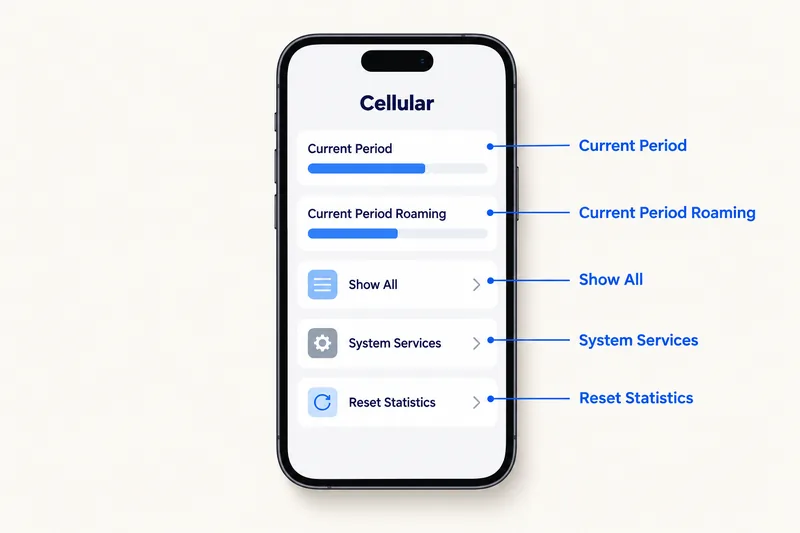
Open Settings, Cellular (called Mobile Data in some regions). Current Period shows the data used since you last reset the statistics, and Current Period Roaming shows data used abroad. Scroll down and tap Show All to see every app's usage, with System Services above the list. iOS does not reset the count automatically, so tap Reset Statistics at the bottom at the start of each bill or trip.
Below: what each number on that screen means, how to read it on a dual SIM iPhone with a travel eSIM, why it rarely matches your carrier's figure, and a simple routine to keep a trip within the daily budget our travel data calculator gives you. If you already know where the data goes and want to cut it, see our guide to saving data on iPhone.
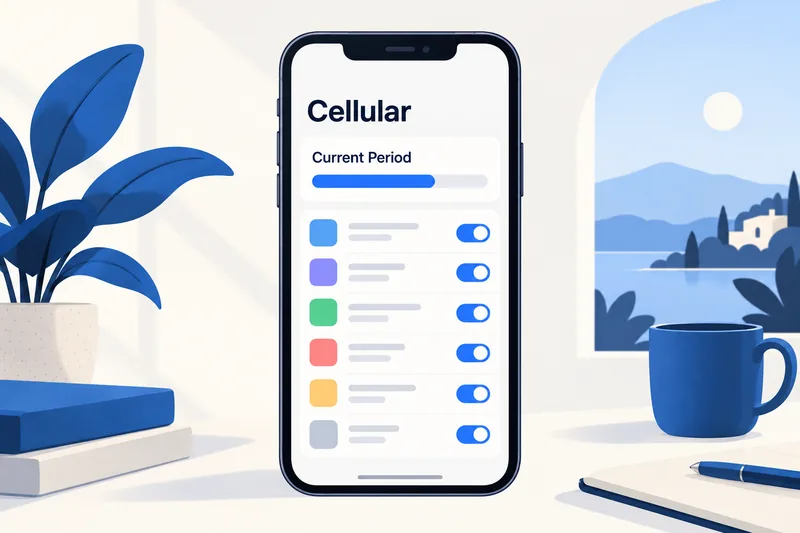
Where to find data usage on iPhone
- Open Settings.
- Tap Cellular (or Mobile Data).
- Look under the Cellular Data section for Current Period and Current Period Roaming.
- Scroll to the app list and tap Show All to see every app, sorted by how much data it used.
- Tap System Services (above the app list) for the data iOS itself used.
Each app also has a switch. Turning it off stops that app using cellular data; Apple notes that it then uses only Wi-Fi.
What the numbers mean
| Entry | What it counts | Watch out for |
|---|---|---|
| Current Period | Cellular data since the last Reset Statistics | Not tied to your bill on most carriers; reset it yourself |
| Current Period Roaming | Data used while roaming on another network | With a travel eSIM, this is usually where the eSIM's use shows |
| App list (Show All) | Data per app since the last reset | Video and social apps normally lead the list |
| System Services | iCloud, software updates, location, notifications and other iOS functions | Can't be switched off per service; big numbers usually mean iCloud sync or an update |
| Personal Hotspot | Data shared with other devices | A laptop on your hotspot can use more than the phone itself |
| Uninstalled Apps | Data used by apps you have since deleted | Counts toward the total until you reset |
Apple adds that Exchange email accounts can keep using data even with Mail turned off, and shows up under System Services. If one app looks far too high, our app guides explain typical rates: YouTube, Instagram, Google Maps and iMessage.
Need data for your trip? Compare eSIM plans by validity and data volume.
View eSIM plansWhen to reset the statistics
Scroll to the bottom of the Cellular screen and tap Reset Statistics. Good moments to do it:
- At the start of your billing cycle, if you want Current Period to match your monthly allowance roughly.
- When you land or switch on a travel eSIM, so the counter shows exactly what this trip has used.
- Before testing an app: reset, use the app for 15 minutes on cellular, then read its figure.
Resetting only clears the iPhone's counter; it has no effect on your carrier's records or your eSIM balance.
Dual SIM and travel eSIM: reading the right line
On a dual SIM iPhone, Apple says the usage you see is for "your selected cellular data number". To check a line:
- Go to Settings, Cellular, Cellular Data and see which line is selected for data. Abroad, that should be your travel eSIM.
- Read Current Period and Current Period Roaming for that line.
- Keep Allow Cellular Data Switching off while travelling so data does not move to your home line during calls.
Roaming is set per line under Cellular Data Options: keep it off on your home line, and on for the travel eSIM, which connects through partner networks. Our guide to turning off data roaming has the exact steps for both lines.
Why your iPhone and your carrier show different numbers
It is normal for the two counters to disagree. Common reasons:
- They start on different days: the iPhone counts from your last reset, the carrier from your billing date or plan activation.
- They round and count slightly differently, and carriers may include network overhead.
- Usage on the other line, or data used before you reset, can land in one count and not the other.
Apple's own advice is that "to get the most accurate cellular data usage from a current period, contact your carrier." For a travel eSIM, the provider's balance is what counts. On most Zyesims plans the delivery email includes a Check balance / Top up link that shows what is left.
Can you set a data limit or alert on iPhone?
Not directly. The Cellular screen counts usage but has no cap or warning setting on the iOS versions we have checked. Your options:
- Carrier app or account: most home carriers offer usage alerts.
- A daily check: reset the statistics on day one, decide a daily budget and look at Current Period each evening.
- A plan that fits: our travel data calculator turns your apps into a daily budget. A light traveller uses about 0.4 GB a day, a moderate one about 1.3 GB and a heavy one about 4.3 GB, all including a 20% buffer.
If the numbers show you need more room than a fixed plan gives, compare our unlimited eSIM plans. For example, a moderate week in Japan is about 9 GB, which fits the Japan 10GB, 30-day plan at $8.99 (Zyesims price on 1 October 2026), while a heavy week fits Japan Unlimited Premium at $15.49 for 7 days, with no daily speed cap (it still follows the network's fair-use terms for personal use). You can also open the calculator with Japan and 7 days.
Something using too much?
Once you have found the heavy apps, switch off cellular data for the ones you can live without, and use the settings in our guide to saving data on iPhone: Low Data Mode, Connectivity Assist (which replaced Wi-Fi Assist and can add cellular use on weak Wi-Fi), iCloud and app update settings, and in-app data savers.
Why Zyesims for keeping track abroad
Our plans show their data and validity before you pay, most include a balance link in the delivery email, and most fixed plans can be topped up on the same eSIM if your counter climbs faster than planned.
Frequently Asked Questions
What does Current Period mean on iPhone?
It is the amount of cellular data used since the statistics were last reset, not necessarily since your bill started. iOS does not reset it automatically each month on most carriers, so tap Reset Statistics at the start of each billing period or trip if you want a clean count.
What is Current Period Roaming?
It shows the data used while your iPhone was roaming on a network outside your home carrier's. With a travel eSIM, usage on the eSIM usually appears here, because the eSIM connects through partner networks abroad.
Why doesn't my iPhone data usage match my carrier or eSIM balance?
The two counters can start on different days, round differently and count slightly different traffic. Apple itself says to contact your carrier for the most accurate figure. For billing and for how much is left on a travel plan, trust the carrier's or eSIM provider's balance.
Can I set a data limit or warning on iPhone?
Not directly. The Cellular screen counts usage but has no cap or alert setting on the iOS versions we have checked. Use your carrier's app or account page for warnings, or reset the statistics and check the counter once a day against your daily budget.
What is System Services and why does it use so much data?
System Services groups data used by iOS itself, such as iCloud, software updates, location and push notifications. You can see the breakdown but cannot switch individual services off. Large numbers usually come from iCloud syncing or an update downloaded over cellular.
Keep reading
- Do eSIMs Expire? What Runs Out, When, and How to Check (2026)
- How Does Dual SIM Work? Pairing a Home SIM with a Travel eSIM
- Can You Hotspot with an eSIM? Limits, Data Use and Fixes for Travelers
- What Is Data Roaming? 2026 Costs and Cheaper Alternatives
- eSIM Not Working? How to Fix No Service on iPhone and Android

A travel and tech enthusiast who loves to wander and discover new places. Mihi writes Zyesims' guides to eSIMs and mobile data abroad, built from carriers' and app makers' own documentation, published plan terms and Zyesims' current plan data — with sources named in each article. Mihi also writes about travel at MihiTravel and Notemeeting.
Ready for your next trip?
Choose the right eSIM, get your QR code by email, and connect when you land — coverage in 200+ countries.