Does AirDrop Use Mobile Data? The iOS 17.1 Exception and How to Turn It Off

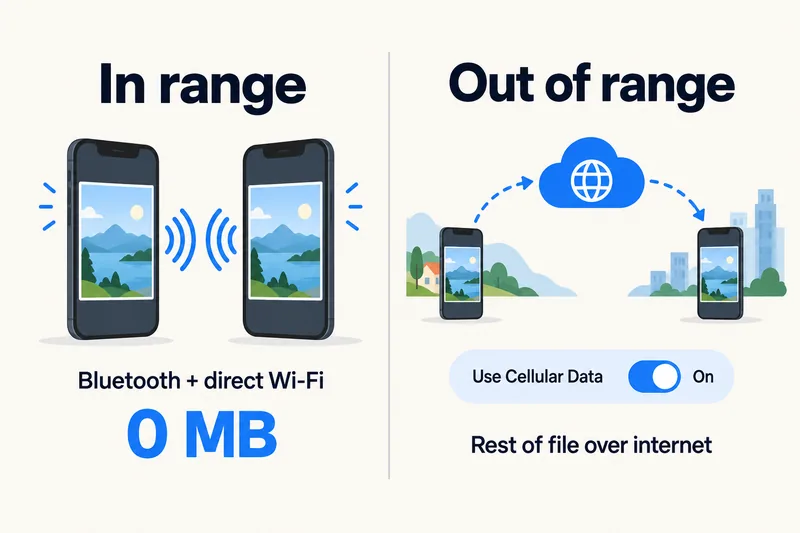
No, AirDrop does not use mobile data as long as both devices stay close together. It finds the other device over Bluetooth and sends the file over a direct Wi-Fi link, with no internet involved. The one exception arrived with iOS 17.1: if you walk out of range mid-transfer, it can finish over the internet, and Apple warns that cellular data charges may apply. One switch, Use Cellular Data under Settings, General, AirDrop, decides whether that can happen.
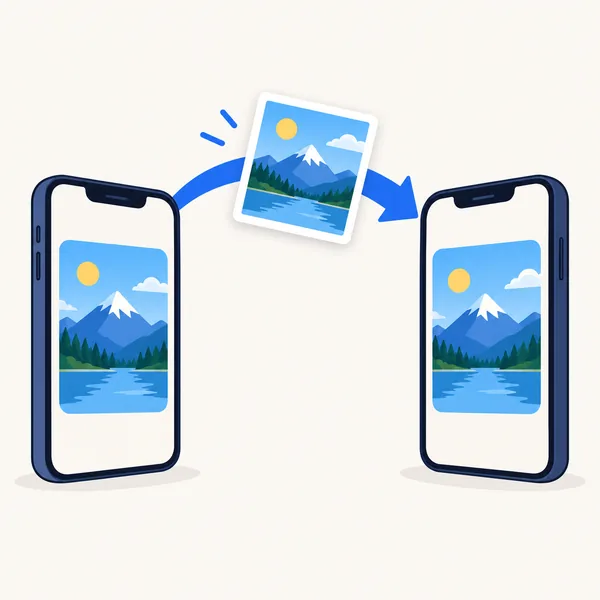
That makes AirDrop the cheapest way to swap photos and videos with travel companions. Below: how AirDrop works, exactly when it can touch your data, the settings to check before a trip, sharing with people who are not in your contacts or use Android, and the hidden data drain people often blame on AirDrop.

How AirDrop sends files without the internet
According to Apple's platform security guide, AirDrop uses Bluetooth Low Energy to discover nearby devices and Apple's own peer-to-peer Wi-Fi to move the file, "without using any internet connection or wireless access point". The link is encrypted. In practice that means:
- No Wi-Fi network needed: the two phones talk to each other directly.
- No SIM or data plan needed: it works before your eSIM is active, in airplane mode with Wi-Fi and Bluetooth switched back on, or in places with no signal.
- Range of about 10 metres: Apple's guides say the devices should be within roughly 30 feet (10 m) of each other.
- Wi-Fi and Bluetooth must be on on both phones, and Apple says to turn off Personal Hotspot if either of you is using it.
When AirDrop can use cellular data (iOS 17.1 and later)
Apple's iOS 17.1 update (released 25 October 2023) added a fallback: "content continues to transfer over the internet when you step out of AirDrop range". Apple's iPhone guide adds that "cellular data charges may apply" and that you can turn this off.
| Situation | Uses mobile data? |
|---|---|
| Both phones stay within range until the transfer finishes | No |
| You move out of range mid-transfer, Use Cellular Data on | Yes, the rest of the file goes over the internet |
| You move out of range mid-transfer, Use Cellular Data off | No, the transfer waits or stops |
| Starting a new AirDrop to someone far away | Not possible; transfers must start nearby |
Reports at launch (MacRumors) noted that both devices need iOS 17.1 or later and must be signed in to iCloud for the fallback to work. How much data it costs is simply the size of the part of the file still to send. Your iPhone's Camera settings (Settings, Camera, Record Video) show how many MB a minute of video takes in each format, which gives you an idea of the stakes with 4K clips.
Apple does not say how this is billed abroad. Our reading: it is ordinary internet traffic on whichever line is set for mobile data. On a travel eSIM that means the eSIM's data allowance; on your home SIM with Data Roaming on, it would count as roaming data.
Need data for your trip? Compare eSIM plans by validity and data volume.
View eSIM plansSettings to check before a trip
- Decide on Use Cellular Data. Go to Settings, General, AirDrop. Under the out-of-range option, turn off Use Cellular Data (called Use Mobile Data in some regions) if you never want AirDrop to touch your plan.
- Keep Data Roaming off on your home SIM. If your travel eSIM is your data line, leave roaming off on the home line so nothing falls back to it.
- Stay together until big files finish. Watch the progress ring before walking away with a long video.
- Stop iCloud Photos from uploading over mobile data. In Settings, Cellular, switch off Photos in the app list, or turn off Cellular Data in the Photos settings. This is the real reason many people see their data drop after an AirDrop session: the received photos get backed up over cellular.
To see what actually used your data, open Settings, Cellular and scroll through the app list. Our guide on checking and managing data usage on iPhone explains each entry.
Sharing with new friends and Android phones
Everyone for 10 Minutes and AirDrop codes
To receive from someone who is not in your contacts, set AirDrop to Everyone for 10 Minutes (iOS 16.2 and later). Apple notes that it switches back to Contacts Only automatically. When both devices run a recent iOS version (Apple says iOS 26.2 or later), a non-contact may be asked to enter a one-time AirDrop code before the file arrives.
NameDrop
NameDrop, part of AirDrop since iOS 17, swaps contact details when you hold two iPhones a few centimetres apart. You choose which phone number or email to share. Like AirDrop, it works without data.
Android phones
Since November 2025, Google's Quick Share can exchange files with iPhones over AirDrop. It launched on the Pixel 10 and has spread to other recent Pixel and Samsung Galaxy models. The iPhone needs to be set to Everyone for 10 Minutes. This is Google's feature, not Apple's, so check that your companion's phone is supported.
What still needs data on a trip
AirDrop covers sharing with the people next to you. Almost everything else on your phone needs a connection: maps, ride-hailing, messaging and uploading the photos you just shared. To size that part, our data calculator adds up your daily apps; a typical traveller lands around 1.3 GB a day. Here are two Zyesims plans for a week in Europe, priced on 1 October 2026:
| How you use your phone | Data for 7 days | Plan that fits | Price |
|---|---|---|---|
| Maps, messaging, a little social media; photos shared by AirDrop | ~3 GB | Europe (33 areas) 5GB, 30 days | $5.49 |
| Typical use with daily social media and a short video call | ~9 GB | Europe (33 areas) 10GB, 30 days | $9.99 |
You can run the calculator for Italy and 7 days or any other country, and see all Europe eSIM plans. If you share large files by messaging app instead of AirDrop, our guide to iMessage data use shows what photos and videos cost.
Why Zyesims alongside AirDrop
Photos you swap by AirDrop never count against a plan, so a week in Europe with maps and messaging fits the 5GB plan above. Check that your iPhone supports eSIM on our compatible devices list.
Frequently Asked Questions
Does AirDrop use mobile data?
Not when both devices stay close together. AirDrop finds nearby devices over Bluetooth and sends files over a direct Wi-Fi link between the two devices, without any internet connection. Since iOS 17.1, though, a transfer that starts nearby can continue over the internet if you move out of range, and Apple notes that cellular data charges may apply.
How do I stop AirDrop from using cellular data?
Go to Settings, General, AirDrop and turn off Use Cellular Data (labelled Use Mobile Data in some regions). Transfers then only complete while you are in range. Also stay within about 10 metres until a large file finishes.
Does AirDrop work without Wi-Fi or a SIM card?
Yes. AirDrop does not need a Wi-Fi network, a SIM or a data plan. It only needs the Wi-Fi and Bluetooth radios switched on, so it works on a plane, in airplane mode with Wi-Fi and Bluetooth turned back on, or before your travel eSIM is active.
Why did my data usage go up after receiving an AirDrop?
Usually because iCloud Photos uploaded the photos or videos you received over mobile data, not because of AirDrop itself. Check the Photos entry in your cellular data list, and turn off mobile data for Photos while you travel.
Can I AirDrop between an iPhone and an Android phone?
With supported Android phones, yes. Since November 2025 Google's Quick Share can send to and receive from iPhones over AirDrop, starting with the Pixel 10 and later adding more Pixel and Galaxy models. The iPhone has to be set to Everyone for 10 Minutes. This is Google's feature; Apple's AirDrop page does not cover it.
Keep reading
- What Is Data Roaming? 2026 Costs and Cheaper Alternatives
- How Does Dual SIM Work? Pairing a Home SIM with a Travel eSIM
- Can You Hotspot with an eSIM? Limits, Data Use and Fixes for Travelers
- Best eSIM for Europe in 2026: Plans, Coverage and Real Prices Compared
- What Is an eSIM? A Complete Beginner's Guide for Travelers (2026)

A travel and tech enthusiast who loves to wander and discover new places. Mihi writes Zyesims' guides to eSIMs and mobile data abroad, built from carriers' and app makers' own documentation, published plan terms and Zyesims' current plan data — with sources named in each article. Mihi also writes about travel at MihiTravel and Notemeeting.
Ready for your next trip?
Choose the right eSIM, get your QR code by email, and connect when you land — coverage in 200+ countries.