eSIM Stuck on Activating? Why It Happens and 9 Fixes That Work (2026)

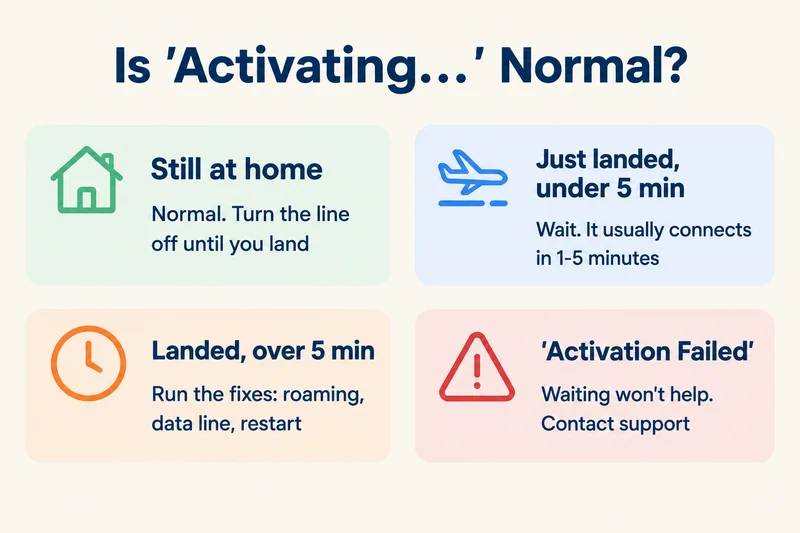
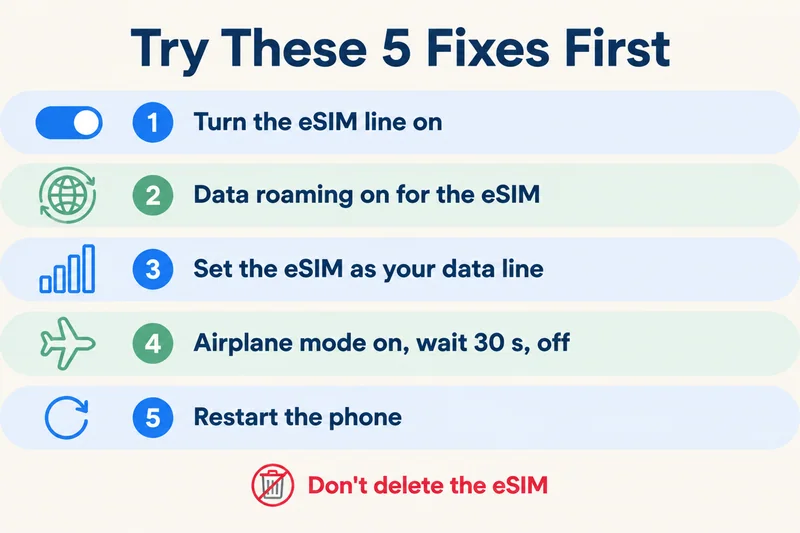
If your travel eSIM shows "Activating…" while you are still at home, nothing is wrong. It can only finish on a network in the country it covers, so leave it installed and it will complete within a few minutes of landing. If you are already there and it has been stuck for more than 5 minutes, turn on data roaming for the eSIM, set it as your mobile data line, toggle airplane mode for 30 seconds and restart. Do not delete it.
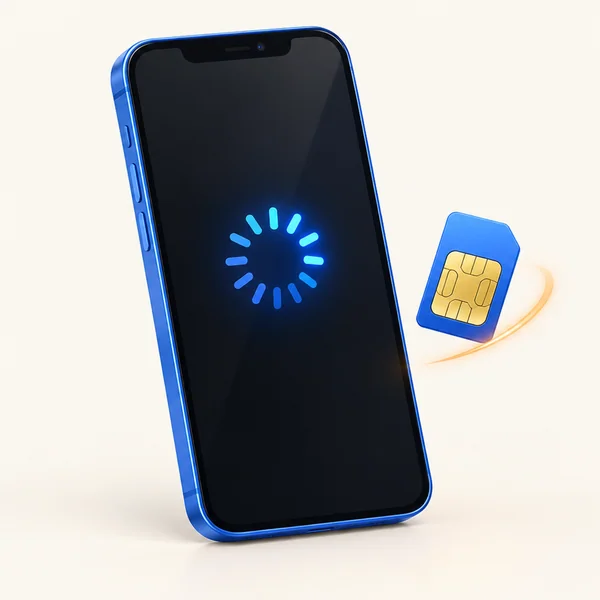
Those four steps often fix it. The rest of this guide covers the ones they do not: what each status message means, the full list of fixes for iPhone and Android, a home-carrier eSIM that gets stuck on a new phone, and an eSIM that will not even let you delete it.
What "Activating" means and when it is normal
An eSIM goes through two stages. First the phone downloads the profile, which is the digital version of inserting a SIM card. Then it has to register that profile on a mobile network. "Activating…" means the first stage is done and the second is not.
If you installed a travel eSIM at home
This is the most common case and it is expected. A travel eSIM for Japan or Europe usually has no partner network in your home country (unless your country is on the plan's list), so it keeps trying and shows "Activating…" or "No Service". The profile is fine. Turn the eSIM line off so it stops searching, and switch it back on after you land.
If you pressed "activate" by accident, the same advice applies. With most Zyesims plans the days only start counting at the first connection in the destination, so nothing has been used up. A few plan families, such as our Europe (31 areas) plans, start counting at installation instead, so for those it is best to install on the day you fly.
What the different messages mean
| What you see | What it means | What to do |
|---|---|---|
| Activating… | Profile installed, not yet registered on a network | Normal at home. At the destination, give it 5 minutes, then run the fixes below |
| No Service | Line is on but not attached to any network | Check coverage, roaming and data line; see our guide to an eSIM that is not working |
| Activation Failed / Unable to Activate eSIM | The install or registration attempt was rejected | Waiting will not help. Check the carrier lock and your connection, then contact the provider |
| This code is no longer valid | The QR code has already been used | Ask the provider for a new profile; you cannot rescan it |
| Signal bars and carrier name, but no internet | Registered, but data is not flowing | Check data roaming, the data line and APN settings |
How long should activation take?
Downloading the profile takes seconds to a couple of minutes on stable Wi-Fi. Registering on the network takes 1 to 5 minutes once you are inside the plan's coverage, sometimes a little longer at a crowded airport. Our breakdown of how long eSIM activation takes has the full timeline. If you are at your destination and nothing has changed after five minutes, stop waiting and start fixing.
How to fix an eSIM stuck on Activating: 9 fixes in order
Work down the list and stop when the status changes. Fixes 2 to 6 are the quick ones and take about two minutes together.
- Check that you are where the plan works. A Japan plan will not activate in Seoul, and a Europe plan only works in the countries on its list. If you have just landed, move out of basements and baggage halls, which often have weak signal.
- Turn the eSIM line on. iPhone: Settings, Cellular (or Mobile Service), tap the eSIM, switch on Turn On This Line. Samsung: Settings, Connections, SIM manager. Pixel: Settings, Network & internet, SIMs, then Use SIM.
- Turn on data roaming for the eSIM. A travel eSIM connects to local networks as a roaming line, so with this switch off it usually gets no data and can stay stuck on Activating. On iPhone, tap the eSIM line and switch on Data Roaming. On Android, open the eSIM's settings and switch on Roaming.
- Make the eSIM your mobile data line. iPhone: Settings, Cellular, Cellular Data, select the eSIM, and switch off Allow Cellular Data Switching while you troubleshoot. Android: set the eSIM as the preferred SIM for mobile data. Turn off data roaming on your home SIM at the same time.
- Toggle airplane mode. Turn it on, wait 30 seconds, turn it off. This forces a fresh search for networks.
- Restart the phone. Power it off completely, wait 30 seconds, power it on and give it two or three minutes.
- Pick a network manually. iPhone: tap the eSIM line, open Network Selection, switch off Automatic and choose a network from the list. Android: Mobile networks, Network operators, switch off automatic selection. Try each network your plan lists.
- Update carrier settings, software, and the clock. On iPhone, open Settings, General, About while on Wi-Fi and wait 20 seconds; if a carrier settings update exists, a prompt appears. Install any iOS or Android update. Set date and time to automatic, because a wrong clock can block the network handshake. If you are installing over Wi-Fi, switch off any VPN and iCloud Private Relay until setup finishes.
- Reset network settings. iPhone: Settings, General, Transfer or Reset iPhone, Reset, Reset Network Settings. This clears saved Wi-Fi passwords and VPN settings. On current iOS versions it keeps your eSIMs, but if any screen asks whether to keep or remove eSIMs, choose keep.
Extra step on Android
Pixel and many other Android phones use an app called Carrier Services to manage eSIMs, and a stuck cache can freeze activation. Go to Settings, Apps, show system apps, open Carrier Services, then Storage, and tap Clear cache. Restart the phone afterwards. Some phones also need the APN entered by hand before data flows; the provider's installation email lists it.
Need data for your trip? Compare eSIM plans by validity and data volume.
View eSIM plansYour new phone's eSIM is stuck on Activating
This one is different. If you just moved your home number to a new iPhone, including an eSIM-only model such as a recent US iPhone or the iPhone Air, the stuck line belongs to your home carrier, not to a travel plan. The fix happens on the carrier's side.
- Keep the old phone switched on and next to the new one until the transfer finishes.
- Connect the new phone to stable Wi-Fi, restart it, and check Settings, General, About for a carrier settings update.
- If a notification says a cellular plan is ready to be installed or needs finishing, tap it and follow the steps.
- Still stuck after about an hour: contact your carrier and give them the new phone's EID and IMEI (Settings, General, About). They can push the line to the new device directly. Our guide to the EID number shows where to find it.
The eSIM is stuck and will not delete
A profile stuck on "Activating" or "Removing" sometimes refuses to go away, which is a common complaint on iPhone forums. Try these in order:
- Turn the line off (Turn On This Line) instead of deleting it. For a travel eSIM this is often all you need until you land.
- Force restart the iPhone: press and release volume up, press and release volume down, then hold the side button until the Apple logo appears.
- Try deleting again while connected to stable Wi-Fi.
- If it is a home-carrier line, ask the carrier to deactivate it from their side, then restart the phone and try again.
- If none of that works, Apple Support can help. An erase-and-restore is a last resort, and when iOS asks whether to keep or erase your eSIMs, make sure you choose the option you actually want.
Only delete a travel eSIM when the provider tells you to. Most QR codes work once, so a deleted profile usually has to be replaced.
When to contact your eSIM provider
Contact support if you are inside the plan's coverage, have been through all nine fixes, and the eSIM is still on "Activating" after 30 minutes, or if you see "Activation Failed" at any point. The provider can check whether the profile was provisioned correctly on their side, which you cannot see from your phone.
Send these details in your first message and you will skip a round of questions:
- Your order number and the email the QR code was sent to
- Phone model and iOS or Android version
- The exact message on screen, ideally as a screenshot
- Where you are and which networks the phone can see
- The EID and IMEI from Settings, General, About, and the eSIM's ICCID number if it is listed
- Which fixes you have already tried
If you need to get online while you wait, airport and hotel Wi-Fi will cover maps and messages. Avoid entering passwords or card details on open networks.

How to avoid it next time
- Install at home on reliable Wi-Fi, not on patchy airport Wi-Fi, and before you leave rather than at the gate.
- Check your phone first: it must support eSIM and be carrier-unlocked. On iPhone, Settings, General, About should show Carrier Lock: No SIM restrictions. See the list of eSIM-compatible devices.
- Update iOS or Android before the trip, not in the arrivals hall.
- Leave the eSIM line off until you land, then turn it on, enable roaming, and select it for data.
- Check when your plan starts counting. Most start at first connection, some at installation.
- Remove old travel eSIMs you no longer need, so the phone is not juggling expired profiles.
How Zyesims helps when an eSIM gets stuck
Once your order is confirmed, we email the QR code with installation steps for iPhone and Android. Most plans only start counting days at your first connection in the destination, so a travel eSIM sitting on "Activating" at home costs you nothing, and most plans give you up to 180 days from purchase to start using it. If the eSIM still cannot connect after troubleshooting, write to support@zyesims.com with the details above; we reply within 24 hours. If a technical fault on our side or our network partner's stops the eSIM from connecting and we cannot fix it with you, you get a full refund under our refund policy. A carrier-locked or incompatible phone is not covered, which is why it is worth checking yours before you buy.
Frequently Asked Questions
How long does eSIM activation take?
Downloading the eSIM profile takes seconds to a couple of minutes on a stable connection. Connecting to the network takes another one to five minutes once you are somewhere the plan covers. A travel eSIM installed at home can show Activating until you land, which is normal. If you are already at your destination and it has been stuck for more than five minutes, start working through the fixes.
Is it normal for my eSIM to show Activating before I travel?
Yes. Most travel eSIMs can only finish activating on a partner network in the country they cover, so at home the phone keeps trying and shows Activating or No Service. The profile is installed correctly. Turn the eSIM line off until you land, then turn it on, enable data roaming for it and select it for mobile data.
Why does my eSIM say Activating but there is no service?
The phone has the eSIM profile but has not yet registered on a network. The usual causes are being outside the plan's coverage, data roaming switched off for the eSIM line, weak signal, or the home SIM still set as the mobile data line. Fix those, toggle airplane mode for 30 seconds and restart the phone.
What happens if I delete an eSIM that is stuck activating?
Usually you lose it. Most eSIM QR codes can be installed only once, so a deleted profile cannot be scanned again and you need a replacement from the provider. Try every other fix first, and if you do need to reinstall, contact support before deleting. Turning the line off is safe; deleting it is not.
My new iPhone eSIM is stuck on Activating after transferring from my old phone. What can I do?
That is your home carrier's eSIM, not a travel eSIM. Keep both phones on Wi-Fi and close together, restart the new iPhone, and check Settings, General, About for a carrier settings update. If it is still stuck after an hour, contact your carrier with the new phone's EID and IMEI so they can push the line to it from their side.
Keep reading

A travel and tech enthusiast who loves to wander and discover new places. Mihi writes Zyesims' guides to eSIMs and mobile data abroad, built from carriers' and app makers' own documentation, published plan terms and Zyesims' current plan data — with sources named in each article. Mihi also writes about travel at MihiTravel and Notemeeting.
Ready for your next trip?
Choose the right eSIM, get your QR code by email, and connect when you land — coverage in 200+ countries.