How Much Data Does Google Maps Use? Per Hour, Per Trip and Offline (2026)

Google Maps uses about 5–10 MB per hour of navigation, so 1GB covers roughly 100 hours of driving or walking directions. Street View and Satellite view are the exceptions and can cost 50–150 MB an hour. With an offline map downloaded for the area, driving directions use almost no data at all.

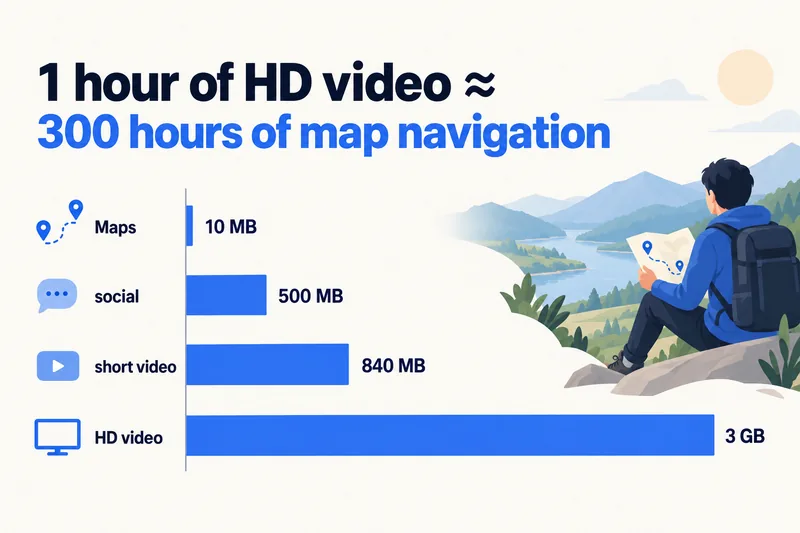
Put another way: a full week of daily navigation usually costs less data than 15 minutes of TikTok. Below are the numbers per mode, what happens offline (it is more limited than most guides say), how much Maps adds to a whole trip, and the settings that keep it close to zero.
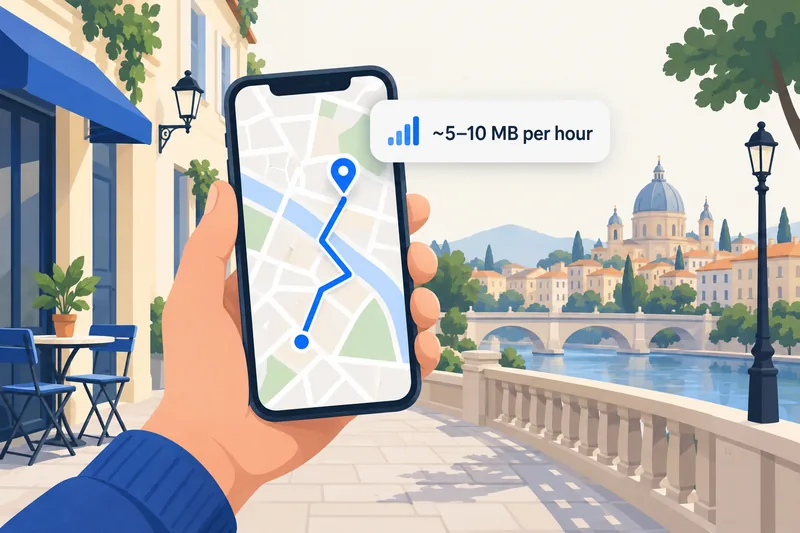
How much data Google Maps uses, by mode
Google does not publish an official figure, so the numbers below are carrier estimates. They are the same ones behind our tool to estimate how much data you need for a trip, which counts Maps at 10 MB an hour (the top of the range) because travellers rarely just follow a route: they also open places, photos and reviews.
| What you are doing in Maps | Data per hour (estimate) | Source | What 1GB covers |
|---|---|---|---|
| Following a route (driving or walking) | ~5 MB | StarHub | about 200 hours |
| Navigation plus searching places, reviews, photos | 5–10 MB | Telstra, StarHub | about 100–200 hours |
| Street View | ~50 MB | StarHub | about 20 hours |
| Satellite view | ~150 MB | StarHub | about 7 hours |
| Navigating inside a downloaded offline area | close to 0 | Google Maps Help | no limit from Maps |
StarHub and Telstra figures were checked on 1 October 2026. You will find much higher numbers on some sites, sometimes hundreds of MB an hour, but those usually mix in Satellite view or count the offline map download as "usage". For normal map view, the 5–10 MB range is what carriers publish.
What inside Maps actually uses data
Your position comes from GPS, which works without data. Data is spent on everything drawn around that position:
- Map tiles each time you move into, or zoom into, a new area
- Live traffic and rerouting when a road is jammed
- Place details: opening hours, reviews, menus and especially photo galleries
- Street View and Satellite imagery, which are high-resolution photos rather than light vector maps
That is why scrolling a restaurant's 200 photos costs far more than an hour of turn-by-turn directions.
Google Maps compared with other travel apps
Maps sits at the very bottom of the data scale. These are the per-hour rates our calculator uses:
| App or activity | Data per hour | Maps hours for the same data |
|---|---|---|
| Google Maps navigation | 5–10 MB | 1 hour |
| Web browsing | 15–75 MB | about 4.5 hours |
| Spotify, Apple Music | 45–145 MB | about 10 hours |
| Instagram or Facebook feed, mostly photos | 120–150 MB | about 14 hours |
| Instagram Stories and Reels mix | ~600 MB | about 60 hours |
| TikTok, Reels, Shorts | 360–840 MB | about 60 hours |
| Video call (WhatsApp, FaceTime) | 540 MB–1.5 GB | about 100 hours |
| YouTube in HD | ~3 GB | about 300 hours |
The "Maps hours" column compares the middle of each range with 10 MB an hour of Maps. If your data runs out early on a trip, look at video first: see how much data YouTube uses and Instagram's data use per hour.
Need data for your trip? Compare eSIM plans by validity and data volume.
View eSIM plansHow much data Maps adds to a whole trip
Multiply hours by 10 MB and Maps stays small even on long trips:
| Trip | Maps use | Maps data for the trip |
|---|---|---|
| Weekend city break, 3 days | 1–2 hours a day | 30–60 MB |
| One week in a new city | 1–2 hours a day | 70–140 MB |
| 10-day road trip | 4 hours of driving a day | about 400 MB |
| Group trip, someone else navigates | a few quick checks | under 30 MB a week |
So the plan size is decided by everything else on your phone. In our calculator, a light user (maps, chat, a little browsing and social media) needs about 0.4 GB a day including a 20% buffer, roughly 3 GB for a week. A moderate user who adds an hour of social media and a short video call each day needs about 1.3 GB a day, roughly 9 GB a week. Four hours of navigation instead of one barely moves either number.
For a one-week road trip in the US, for example, Zyesims prices on 1 October 2026 look like this:
| How you use your phone | Data for 7 days | Plan that fits | Price |
|---|---|---|---|
| Maps and messaging, very little else | under 3 GB | United States 3GB, 30 days | $4.49 |
| Light use with some browsing and social media | about 3 GB plus margin | United States 5GB, 30 days | $6.49 |
| Moderate use with daily social media and calls | about 9 GB | United States 10GB, 30 days | $11.49 |
To run the numbers for your own trip, open the calculator with the US and 7 days filled in and change the destination, days and activities. All US eSIM plans are listed on the destination page.
Using Google Maps offline: what works and what doesn't
Offline maps are the single biggest data saver, but they are not a full copy of Google Maps. According to Google's own help page:
- Works offline: viewing the map, your live position, searching places inside the area, and driving directions.
- Does not work offline: walking, cycling and public transit directions, live traffic and alternative routes.
- Expiry: offline areas expire after a while. When one has 15 days or less left and you are on Wi-Fi, Maps tries to update it automatically (there is an "Auto-update offline maps" setting).
- Availability: Google notes that offline maps cannot be downloaded in some countries or regions, so check before you rely on them.
In a walkable city, that means offline maps keep you oriented with no data, but you still want a small data plan for walking or metro directions. On a road trip, offline maps can carry most of the navigation.
How to download an offline map
- Connect to Wi-Fi at home or at the hotel.
- Open Google Maps and tap your profile picture.
- Tap Offline maps, then Select your own map.
- Drag the box over the city or region you need and tap Download. Maps shows the download size before you confirm.
A quicker route for a single city: search for it, open its place sheet, tap More and choose Download offline map.

How to check how much data Google Maps used
Your phone counts data per app: on iPhone under Settings, Cellular (tap Reset Statistics before you fly), on Android in the mobile data usage screen (Pixel: Settings, Network & internet, SIMs; Samsung: Settings, Connections, Data usage).
If Maps shows far more than the figures above, the usual causes are Satellite view left on, a lot of photo browsing on place pages, or background activity. Our guide on checking data usage on iPhone walks through the full screen.
How to keep Google Maps data close to zero
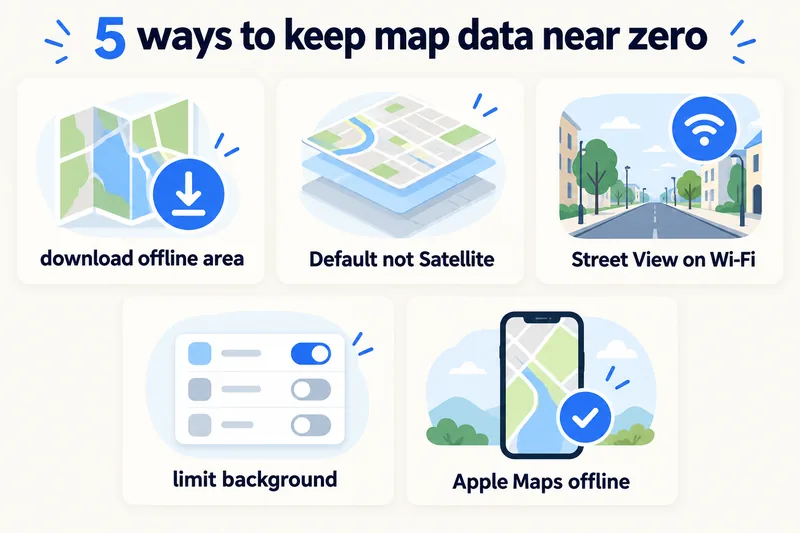
Download the area before you leave
Do it on home Wi-Fi the day before you fly, and download any second city or day-trip area too. This is the setting that matters most.
Switch Satellite view back to Default
Open the layers button and choose Default. Satellite imagery is the heaviest thing Maps loads, and it is easy to leave on by accident.
Save Street View and photo browsing for Wi-Fi
Previewing a hotel entrance in Street View or scrolling restaurant photos is fine at the hotel. On mobile data, read the opening hours and leave the gallery for later.
Limit background activity
On iPhone, turn off Background App Refresh for Google Maps (Settings, General, Background App Refresh) or turn on Low Data Mode for your travel line. On Android, open Google Maps in the app data usage screen and switch off Background data. Maps still works normally when it is open.
Consider Apple Maps offline on iPhone
Since iOS 17, Apple Maps can also download areas for offline use. If you are on an iPhone and prefer Apple Maps, the same rule applies: download on Wi-Fi first.
Why Zyesims for navigation-heavy trips
For a trip where maps and messaging are most of what you do, a small fixed plan is usually enough: the US 3GB plan above covers a week of that, and most fixed plans can be topped up on the same eSIM if the trip runs longer. Before you buy, check that your phone is on our eSIM compatible devices list.
Frequently Asked Questions
How much mobile data does Google Maps use per hour?
About 5–10 MB an hour for normal navigation, based on carrier estimates from Telstra and StarHub. It goes up when you browse places with lots of photos, and much higher in Street View or Satellite view, which StarHub puts at around 50 MB and 150 MB an hour. Google does not publish an official figure.
Does Google Maps use data when it is offline?
Inside a downloaded offline area, Google Maps can show the map and give driving directions with mobile data switched off. Walking, cycling and transit directions are not available offline, and neither are live traffic or alternative routes. If data is on, Maps still uses a little for searches and traffic.
Does GPS use mobile data?
No. GPS is a signal your phone receives from satellites, so the blue dot showing your position works without data. What uses data is loading the map around you, searching for places and getting live traffic. With an offline map downloaded, you can follow your position with no data at all.
How much data will Maps use over a week of travel?
One to two hours of navigation a day comes to roughly 70–140 MB over a week. A road trip with four hours of driving a day for 10 days stays around 400 MB. Maps is rarely what decides your plan size; social media, video and calls are.
Do Apple Maps or Waze use less data than Google Maps?
None of the three publishes an official per-hour figure, and independent estimates for Waze vary too much to rely on. The practical difference is offline support: Google Maps and Apple Maps (from iOS 17) let you download areas and navigate without data, while Waze needs a connection to work.
Keep reading
- Best eSIM for USA Travel in 2026: Plans, Networks and Real Prices Compared
- What Is Data Roaming? 2026 Costs and Cheaper Alternatives
- Can You Hotspot with an eSIM? Limits, Data Use and Fixes for Travelers
- What Do Internet Speeds Really Mean? Mbps, 4G & 5G for Travelers
- How to Buy an eSIM Online: A Simple Guide for Travelers

A travel and tech enthusiast who loves to wander and discover new places. Mihi writes Zyesims' guides to eSIMs and mobile data abroad, built from carriers' and app makers' own documentation, published plan terms and Zyesims' current plan data — with sources named in each article. Mihi also writes about travel at MihiTravel and Notemeeting.
Ready for your next trip?
Choose the right eSIM, get your QR code by email, and connect when you land — coverage in 200+ countries.