How Does Dual SIM Work? Pairing a Home SIM with a Travel eSIM

Dual SIM runs two lines at once: keep your home SIM for calls and OTP codes, add a travel eSIM for cheap data. How it works, iPhone and Android setup, and the roaming setting not to skip.
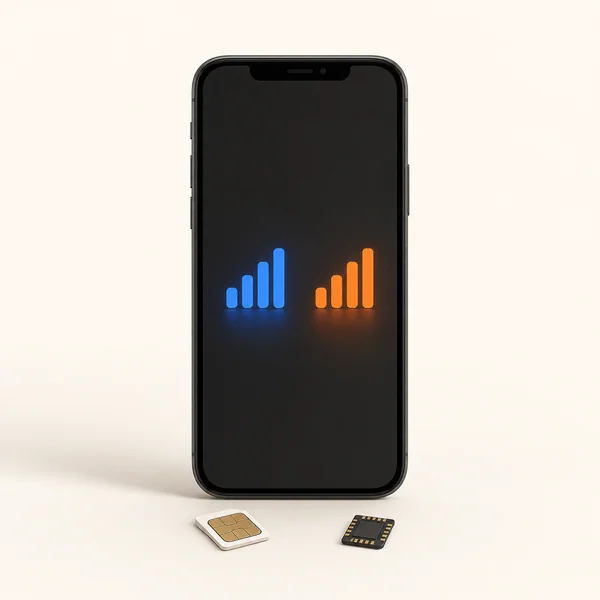
Quick answer: dual SIM lets your phone run two lines at once. For travel, the winning setup is simple: keep your home SIM for calls and texts (so you still get bank codes on your usual number), and add a travel eSIM for data. The phone routes each automatically, setup takes about two minutes, and you land with cheap local-rate internet without losing your number.
This guide explains how dual SIM actually works, the exact travel configuration, step-by-step setup on iPhone and Android, and the one setting that prevents a surprise roaming bill.
What Is Dual SIM?
Dual SIM means your phone can hold two active lines. Almost all modern phones use Dual SIM Dual Standby (DSDS): the modem rapidly cycles between both lines to watch for calls and texts, so both numbers stay reachable without needing two sets of radio hardware. On most phones the two lines are one physical SIM plus one eSIM; iPhones from the iPhone 13 on can run two active eSIMs, and US models from iPhone 14 are eSIM-only since there is no SIM tray.
The practical upshot for travelers: one phone, two numbers, and you decide which line does what. The same feature is why people run one number for work and one for personal life on a single phone; travel is just the version where the second line is a data eSIM.
The Travel Setup That Matters
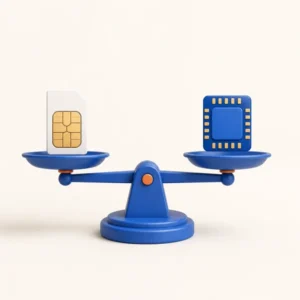
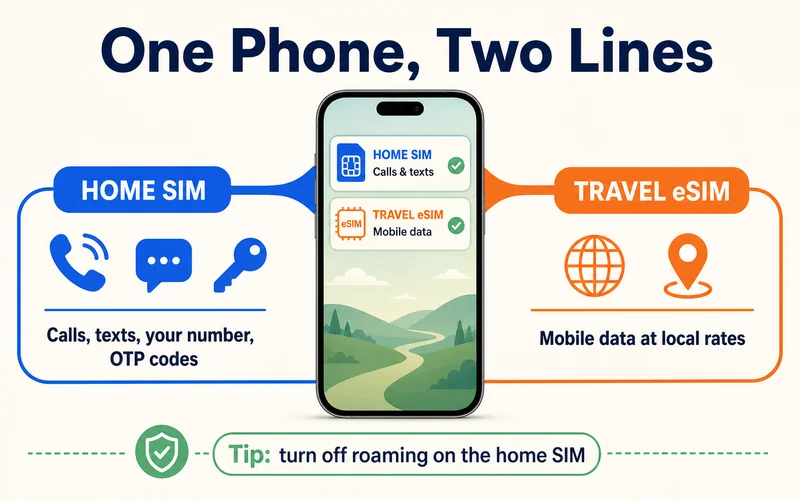
You do not need a second phone number abroad. You need cheap data while keeping your identity line alive. So the configuration is always the same:
- Home SIM → calls, SMS, your number. Keeps receiving bank OTP codes and calls from home. (More on that in receiving bank 2FA codes abroad with an eSIM.)
- Travel eSIM → mobile data. Carries maps, apps, browsing, streaming at local rates instead of roaming prices.
Because the eSIM only handles data, your home carrier never bills you for roaming internet, and a travel plan like a Zyesims eSIM costs a fraction of roaming. Apps tied to your number — WhatsApp, iMessage, FaceTime — keep working on your home number; they simply send their traffic over the eSIM's data.
Need data for your trip? Compare eSIM plans by validity and data volume.
View eSIM plansHow Your Phone Handles Two Numbers
With both lines active, your phone lets you set defaults:
- Default data line: set this to the travel eSIM so all internet uses it
- Default voice line: leave this on the home SIM so outgoing calls use your normal number
- Per-contact overrides (iPhone) let specific contacts always call from a chosen line
While the phone is idle, both lines listen for incoming calls, so in everyday use you will not miss a call on either number. The one exception is covered below.
The One Limitation: Standby, Not Simultaneous
"Dual Standby" is the catch worth understanding. Both lines wait for calls when the phone is idle, but only one line is active at a time. So while you are on a call on your home line, the travel line cannot ring (callers go to voicemail) and, on most phones, cannot use data either. For the standard travel setup this rarely bites — your data eSIM does not receive calls anyway — but it explains why you cannot browse on the eSIM during a home-line call. True Dual SIM Dual Active (DSDA), where both lines work at once, exists only on a few niche models; every iPhone, Galaxy, and Pixel flagship is DSDS.
Set Up Dual SIM on iPhone
- Keep your physical SIM in the tray (or your home eSIM installed on US models)
- Install the travel eSIM: Settings → Mobile Service (or Cellular) → Add eSIM, then scan the QR code from your provider's email
- Label the lines clearly (e.g. "Home" and "Travel") when prompted
- Set Mobile Data to the travel eSIM, and turn off "Allow Mobile Data Switching"
- Leave Default Voice Line on your home SIM
Why turn off "Allow Mobile Data Switching"? With it on, your phone can borrow data from the home line — during a call, for example — which can quietly trigger home-carrier roaming charges abroad. Off keeps all data strictly on the travel eSIM, so your bill stays predictable. The only trade-off is no data on the home line during a home-line call, which you do not need when the eSIM carries your internet.
iPhone-specific eSIM tips live in our eSIM on iPhone 15 guide.
Set Up Dual SIM on Android
- Settings → Connections (or Network & internet) → SIM manager → Add eSIM, then scan the QR code
- Under SIM manager, set Mobile data to the travel eSIM
- Set Calls and Messages to your home SIM
Samsung-specific steps are in our Samsung eSIM setup guide. New to how eSIM differs from the plastic cards? See SIM vs nano-SIM vs eSIM.
The One Setting Not to Skip
After setup, turn off data roaming on your home SIM. This is the single step that prevents a nasty bill. If the home SIM keeps roaming enabled, background apps can quietly pull data over your home carrier's expensive roaming rate even though your eSIM is handling everything visible.
- iPhone: Settings → Mobile Service → tap the home line → turn off Data Roaming
- Android: Settings → SIM manager → home SIM → turn off Data Roaming
Roaming, Billing, and Emergency Calls
Roaming: with the setup above, only the eSIM carries data at local rates, and the home SIM is roaming-off. You get cheap internet with zero roaming surprises.
Billing: each line bills independently. Calls and texts on the home SIM follow your home plan, and outgoing calls made abroad usually bill at international roaming rates — if you want to call home cheaply, use WhatsApp or FaceTime over the eSIM's data instead of dialing. Data is prepaid on the eSIM, so there is nothing to overspend.
Emergency calls: numbers like 911, 112, 999, and 000 connect over whichever line has signal, regardless of your data or voice defaults. Your phone picks any available network for emergencies.
Why This Beats Swapping SIMs
The old way — pulling your home SIM and inserting a local one — means losing your number, missing OTP codes, and hunting for a shop on arrival. Dual SIM with an eSIM keeps both: your number stays live while cheap data is ready the moment you land, installed before you even leave home. No tray tools, no lost SIM cards, no store queues.
Frequently Asked Questions
How does dual SIM work with a travel eSIM?
Your phone runs two lines at once using Dual SIM Dual Standby. You keep your home SIM active for calls, texts, and your usual number, and add a travel eSIM that carries mobile data. The phone routes calls to your home number and internet to the eSIM automatically. Setup takes about two minutes.
Will my home number still work while I use a travel eSIM?
Yes. Your home SIM stays active, so you still receive calls, SMS, and bank OTP codes on your usual number. WhatsApp, iMessage, and FaceTime also stay linked to it; they just run over the eSIM's data. Turn off data roaming on the home SIM so it does not rack up charges in the background.
Which phones support dual SIM with an eSIM?
Most phones from 2018 on: iPhone XS and newer, Samsung Galaxy S20 and newer, and Google Pixel 4 and newer. US iPhone 14 and later are eSIM-only with no physical tray, so both lines are eSIMs. Look for an EID entry in Settings to confirm eSIM support, or check our eSIM-compatible devices list.
Do I get charged for the data line I am not using?
You choose which line carries data, and only that plan is used for internet. With the recommended travel setup, data runs on the eSIM (a prepaid travel plan) while the home SIM handles only calls and texts, so your home carrier never bills you for roaming data.
Can I use data on the eSIM while on a call on my home line?
On most phones, no. Almost every iPhone, Galaxy, and Pixel is Dual SIM Dual Standby, so only one line is active during a call; the other cannot ring or pass data until the call ends. This rarely matters for the travel setup, since your data eSIM does not take calls anyway. Only rare Dual SIM Dual Active phones run both lines at once.
Can I use dual SIM for a work and a personal number?
Yes. The same feature that pairs a home SIM with a travel eSIM also lets you keep one number for work and one for personal life on a single phone. Label the lines, set a default voice line, and use per-contact rules so each number rings from the right line.
Can I make emergency calls on either line?
Yes. Emergency numbers such as 911, 112, 999, and 000 work over whichever line has signal, regardless of which one is set for data or calls. Your phone automatically uses the available network to connect an emergency call.
Read More
- What Is an eSIM? A Beginner's Guide
- How to Use iMessage with a Travel eSIM
- eSIM vs Roaming Cost: Which One Actually Saves You Money?
Keep reading
- What Is an eSIM? A Complete Beginner's Guide for Travelers (2026)
- Best eSIM for Vietnam in 2026: Plans, Networks and Real Prices Compared
- eSIM Not Working? How to Fix No Service on iPhone and Android
- Can You Hotspot with an eSIM? Limits, Data Use and Fixes for Travelers
- Best eSIM for USA Travel in 2026: Plans, Networks and Real Prices Compared

A travel and tech enthusiast who loves to wander and discover new places. Mihi writes Zyesims' guides to eSIMs and mobile data abroad, built from carriers' and app makers' own documentation, published plan terms and Zyesims' current plan data — with sources named in each article. Mihi also writes about travel at MihiTravel and Notemeeting.
Ready for your next trip?
Choose the right eSIM, get your QR code by email, and connect when you land — coverage in 200+ countries.